
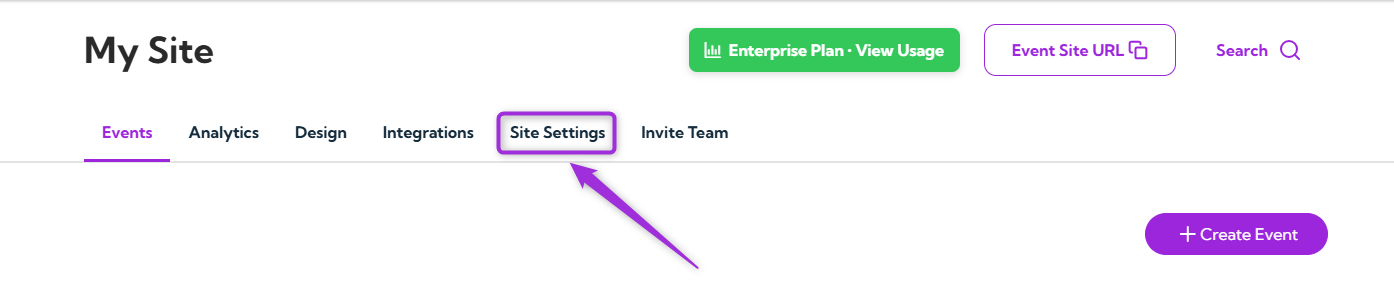
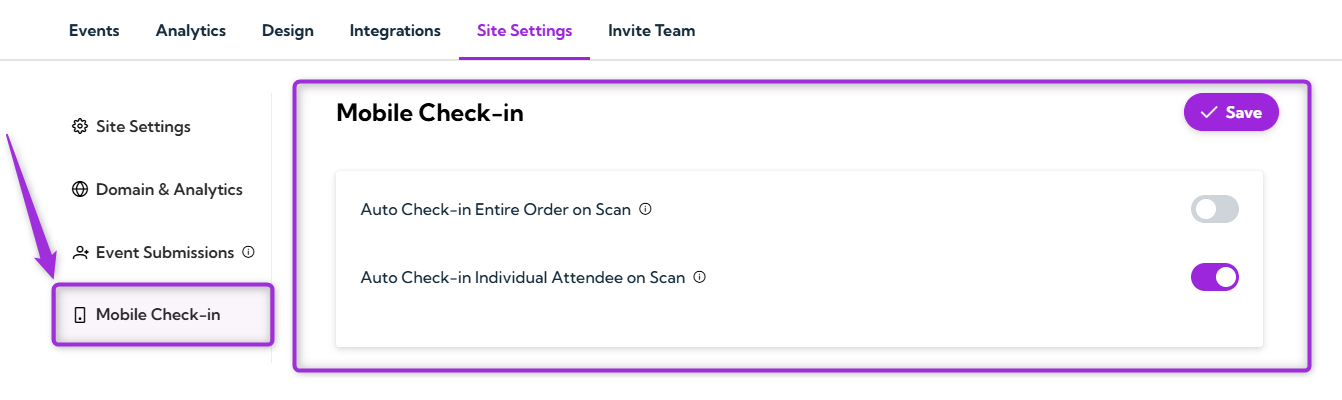
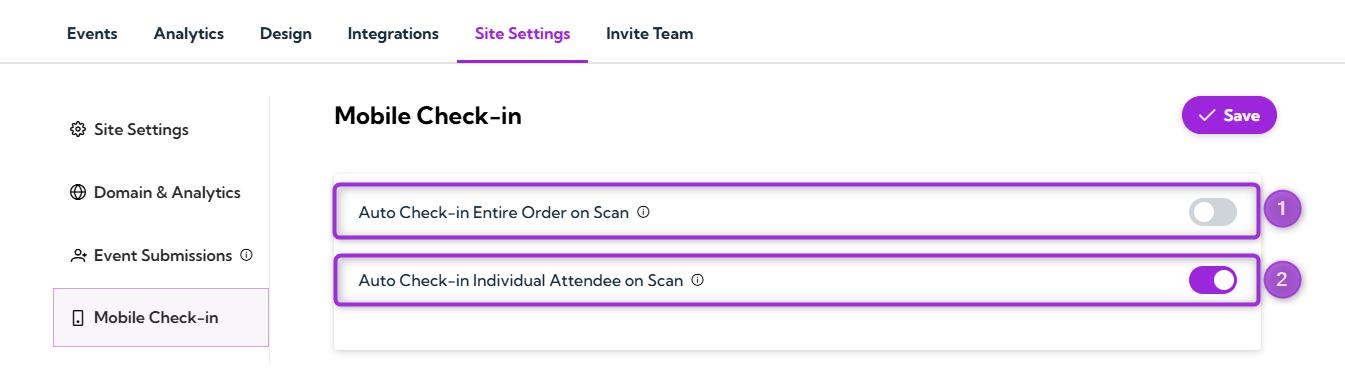
The Mobile Check-in settings help you manage how attendees are checked in when their tickets are scanned at the event. You can choose to check in an entire order with a single scan or check in each attendee individually. These options give you flexibility to match your check-in process with the size of your event and how your guests typically arrive. Let’s get started 🚀 Step 1: Log in to your Ticket Spot account and click on the Site Settings tab from the top navigation bar. site-setting-tab Step 2: Select Mobile Check-in from the left sidebar to open the check-in settings page. click-mobile-checkin Step 3: Select your preferred check-in method. You can choose to check in an entire order with one scan or check in each attendee individually.
OptionDescriptionExample
Auto Check-in Entire Order on ScanChecks all the tickets in order when you scan any one ticket.A family or group arrives together. One scan checks everyone in.
Auto Check-in Individual Attendee on ScanChecks in one attendee at a time. Each ticket must be scanned separately.Helpful when you need to verify each attendee individually.
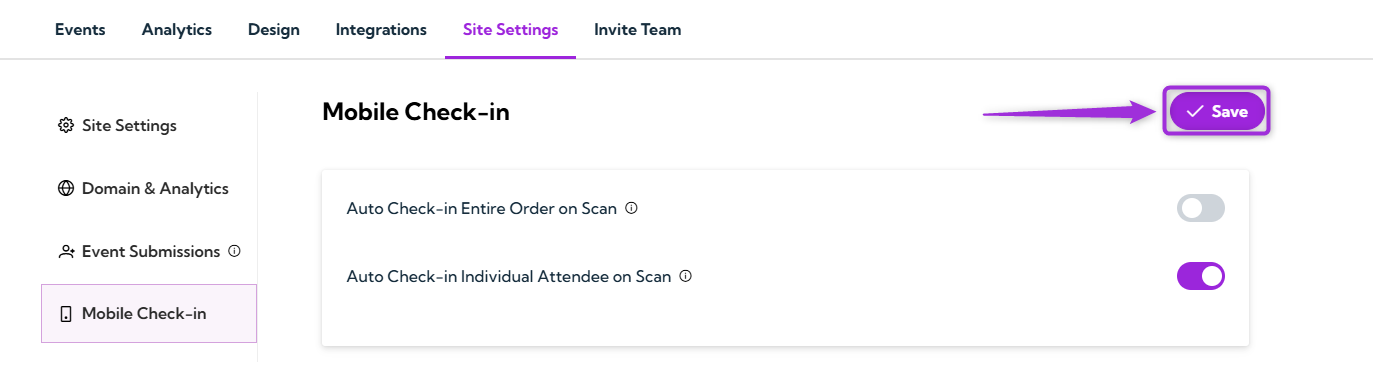
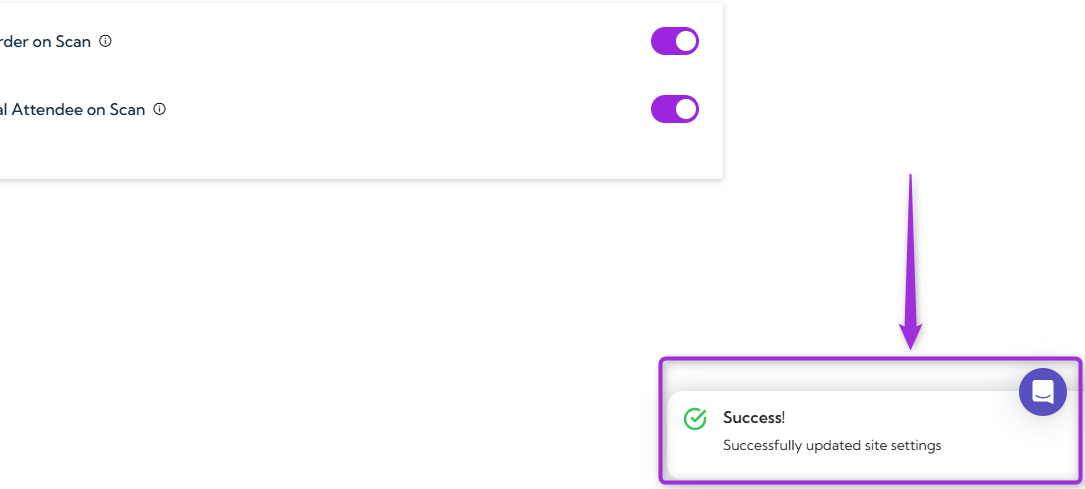
toggle-options Step 4: After choosing your check-in method, click the Save button in the top-right corner to apply your changes. click-save After saving, a confirmation message will appear to show that your check-in site settings have been successfully updated. success-message

Best Practices

  • Choose the right mode based on how your attendees typically arrive (groups vs. individuals).
  • Test your check-in method before the event using a sample ticket.
  • Train your staff so they understand whether you’re using group check-in or individual check-in.
  • Use a device with a reliable camera for faster and smoother scanning during entry.